AI Video Generator

Create an AI video

Start with a written scene or reference image, choose the controls your model supports, and generate a 5-, 10-, or 15-second video to preview and download.

Two named Seedance modelsText and image starting pointsCredit cost shown before each run
Enter to generate · Shift + Enter for a new line0/2500
Estimated cost15 credits

Your video will appear here

Enter a prompt and choose your settings to begin.

Setup blueprints

Build a complete video setup

Each blueprint combines a starting mode, model, aspect ratio, duration, and prompt you can edit before running.

These temporary images illustrate each setup only; they are not generated-video results or performance proof.

Illustrative preview for a cinematic video setup
Setup previewText to video

Cinematic establishing shot

Shape an atmospheric opening from text with a wide frame and deliberate camera movement.

Prompt

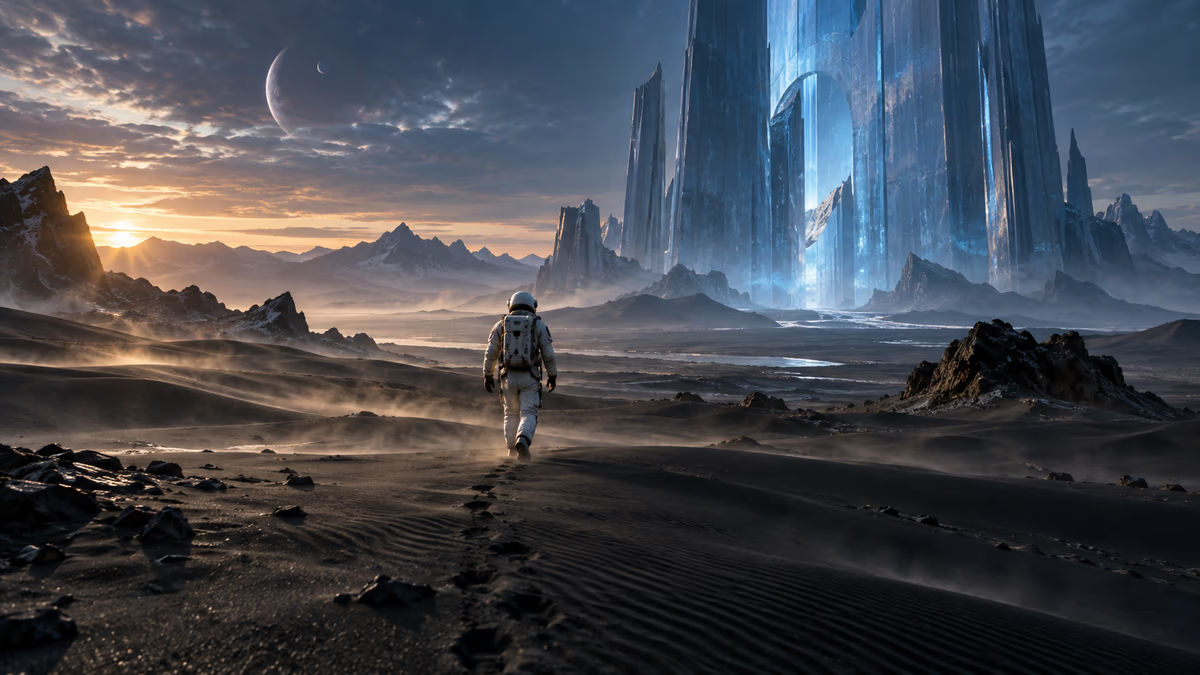
“A lone astronaut crosses a vast black-sand desert toward a translucent blue monument, cold twilight, windblown dust, warm rim light, slow cinematic dolly forward, realistic science-fiction film look.”

Seedance 2.05s · 16:9

Illustrative preview for a product image-to-video setup
Setup previewImage to video

Product image in motion

Start from a product image, then direct a controlled orbit, lighting shifts, and subtle scene motion.

Prompt

“Keep the bottle centered while the camera makes a slow clockwise orbit; add gentle water ripples, drifting citrus, clean studio highlights, and realistic glass reflections.”

Seedance 2.05s · 1:1
Illustrative preview for a vertical social video setup
Setup previewText to video

Vertical social sequence

Plan a 9:16 opening with an immediate focal point, forward motion, and a readable visual hook.

Prompt

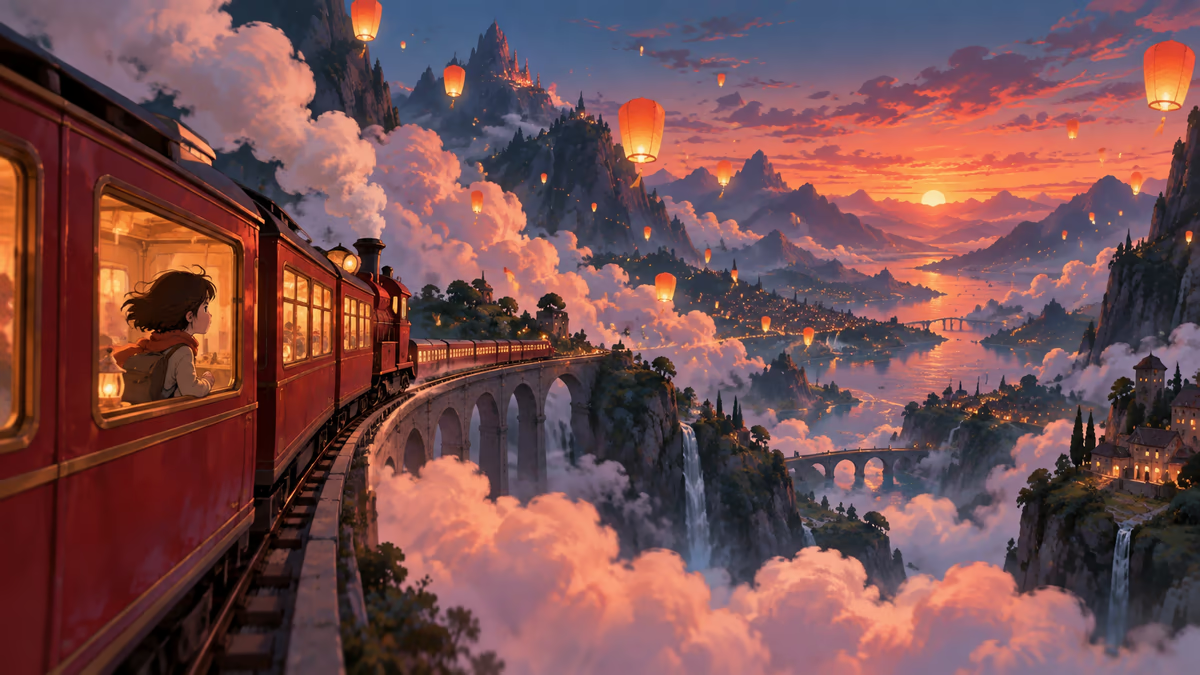
“A small red train glides through oversized clouds and glowing lanterns, smooth forward tracking, layered parallax, vivid blue-hour color, playful hand-painted animation, composed for a vertical social video.”

Seedance 2.0 Fast5s · 9:16
Creation modes

Choose an input

Use text to define the entire shot, or use a reference image and focus your prompt on motion.

Astronaut walking across a black-sand alien desert toward a blue structure
Text to video

Describe a scene

Choose text-to-video when you have a scene in mind but no starting frame to upload.

  • Define the subject, action, setting, light, and camera
  • Choose a supported frame and 5-, 10-, or 15-second duration
  • Explore campaign concepts, story beats, or visual treatments
Model guide

Choose the controls your shot needs

Both Seedance models accept text and image inputs, with the same frame options but different maximum resolutions.

01Fast series

Seedance 2.0

Choose six aspect ratios, 480p, 720p, or 1080p resolution, and generated audio for either text or image input.

5 / 10 / 15s16:9 · 9:16 · 1:1 · 4:3 · 3:4 · 21:9480p / 720p / 1080pGenerated audio
02

Seedance 2.0 Fast

The Fast series supports the same six aspect ratios and generated audio when 480p or 720p output fits the task.

5 / 10 / 15s16:9 · 9:16 · 1:1 · 4:3 · 3:4 · 21:9480p / 720pGenerated audio

This guide uses the generator's current model list, so every model and control shown here is available in the workspace.

How it works

Create a video in three steps

Move from input to settings, cost, generation, preview, and download without leaving the workspace.

Prompt
Step 1

Add a prompt or image

Describe the full shot for text-to-video, or upload a reference image and focus your prompt on movement.

Settings
5s16:91080p
Step 2

Select the model and settings

Set duration, aspect ratio, and supported advanced controls, then check the credit estimate before generating.

Step 3

Generate, review, and download

Follow the task in the result panel, preview the completed video, and download it when it is ready.

Prompt guide

Write a clear prompt for the shot

Lead with the subject and action, then add the setting, camera movement, light, and visual style that matter.

A useful structure

Subjectactionsettingcameralightingvisual style
Before and after

Make a loose idea specific

Add observable action, framing, camera behavior, light, and pacing instead of relying on a subject alone.

Loose prompt

“A woman walks through a rainy city at night.”

Directed prompt

“A woman in a red coat walks through a rain-soaked neon alley at night. Medium tracking shot from behind, shallow depth of field, reflections on wet pavement, slow deliberate pace, cinematic realism.”

Camera language

Name the movement you want

Add one clear camera instruction when movement matters. These common phrases are easier to interpret than vague words such as dynamic or cinematic.

01

Slow dolly in

“slow dolly in toward the subject”

Moves closer gradually to build focus, intimacy, or suspense.

02

Tracking shot

“smooth tracking shot alongside the subject”

Follows movement while keeping the subject clearly framed.

03

Orbit

“slow 180-degree orbit around the subject”

Reveals shape and surroundings while the subject stays central.

04

Locked camera

“locked-off camera, no camera movement”

Keeps the frame fixed so only the scene itself changes.

05

Handheld

“subtle handheld camera with natural sway”

Adds restrained human motion for documentary energy or realism.

06

Aerial reveal

“aerial pullback revealing the wider landscape”

Expands from a subject into a larger environment for scale.

Practical workflows

Test motion before production

Use a short generation to compare visual directions, clarify motion, or give a larger production a clearer motion reference.

Astronaut walking across a black-sand alien desert toward a blue structure
01

Campaign concepts

Show stakeholders multiple moving directions before committing budget and time to a full production.

Unbranded perfume bottle floating above water with citrus and flowers
02

Product motion studies

Explore how a reveal, orbit, or lighting change could animate an existing product direction.

Small red train traveling through a fantasy cloud valley
03

Story previsualization

Test shot size, camera movement, atmosphere, and pacing while the story is still easy to revise.

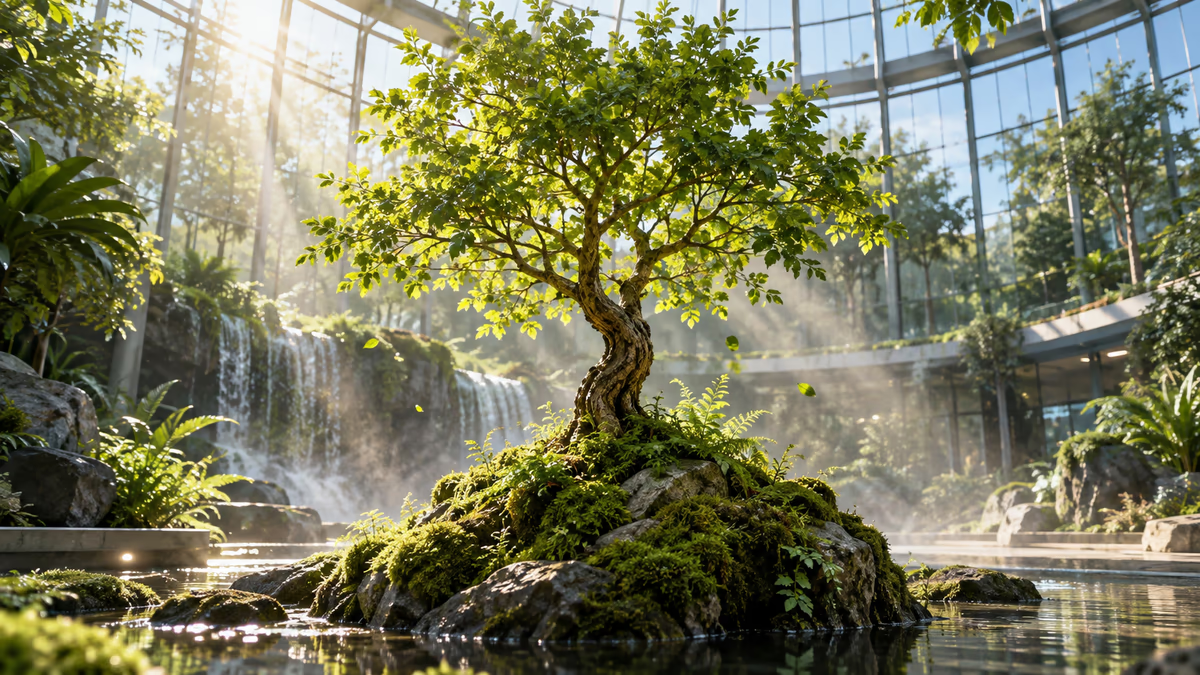
Green tree growing from a mossy stone in a glass atrium
04

Vertical social hooks

Try a 9:16 opening with one readable subject and an immediate motion cue for the first few seconds.

Why this workspace

Review the setup before generating

The workspace keeps model identity, supported controls, credit cost, task progress, and completed results visible in one flow.

01

Named production models

Choose Seedance 2.0 or Seedance 2.0 Fast before submitting the task.

02

Controls that match

See only the settings supported by the model you selected.

03

Cost before each run

Check the estimated credit cost before you start generating.

04

One result flow

Track progress, preview the completed video, and download it from the same workspace.

FAQ

Questions about AI video generation

Key details about inputs, models, duration, audio, credits, and failed tasks.

Next steps

Continue with the generated clip

Send a completed video to a focused tool for higher resolution, smoother motion, or background changes.

AI Video Generator

Create a new video

Start from your own prompt or choose an example, then review the model, settings, and credit cost before you generate.

AI Video Generator | Text and Image to Video | Unblur Video